Everything Glass does
Shown on one real take: three minutes of rambling through a made-up invoicing app, recorded in one go, and the video Glass made from it.
Record
Pick what to record and start talking.
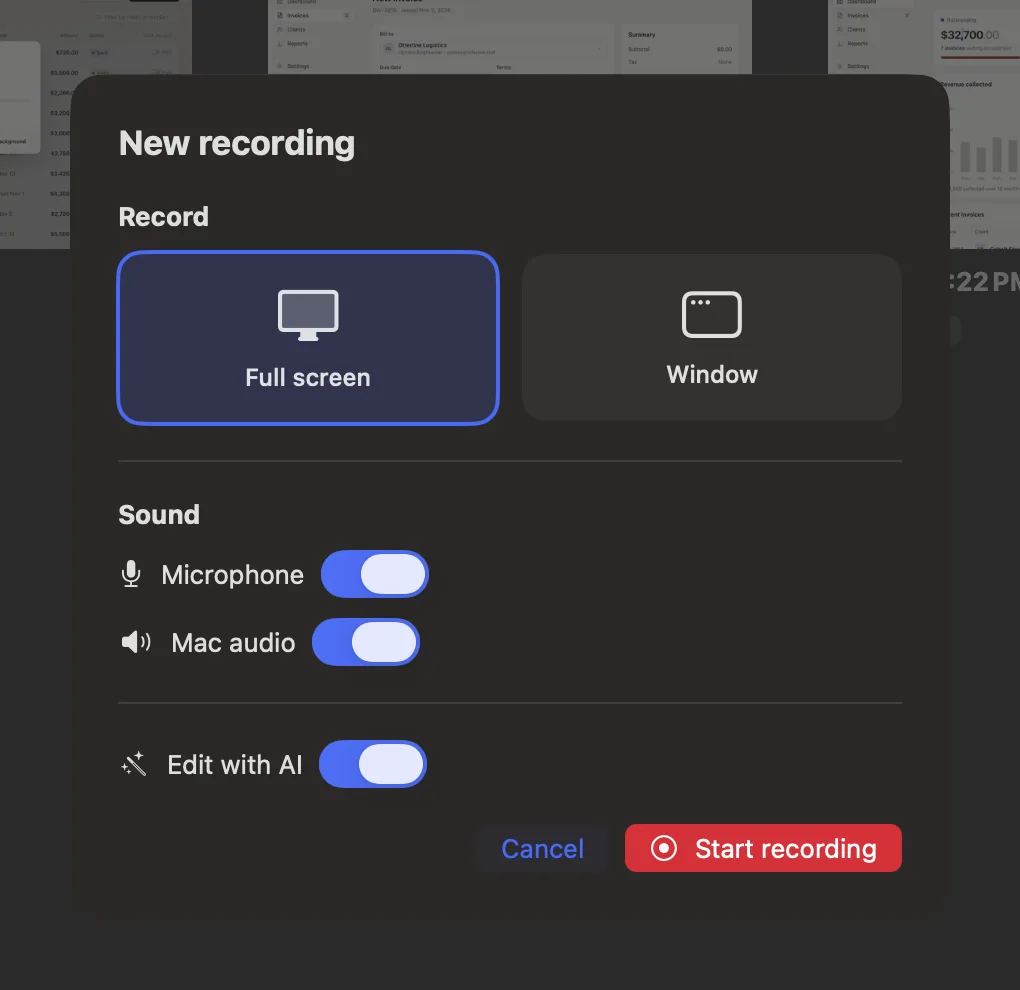
A whole screen or one window
Record your full screen or a single window, with your microphone and the sound your Mac plays. Mute either one mid-take with ⌥⌘M or ⌥⌘A.
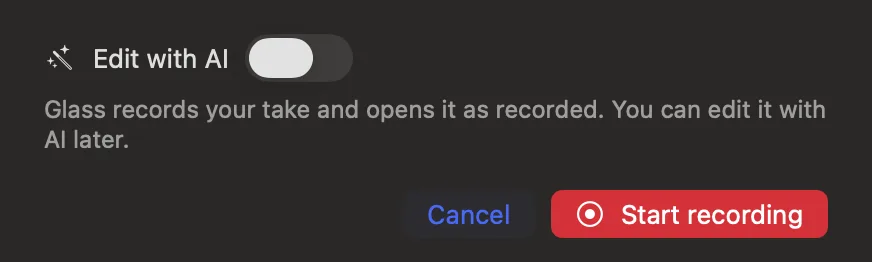
The AI can sit this one out
Switch off Edit with AI and Glass just records. The take opens exactly as you recorded it, and you can have Glass edit it later.
While you talk
Glass starts editing before you stop.
It edits as you go
Every 20 seconds of your take is transcribed and edited while you keep talking, so most of the work is done by the time you press Stop.
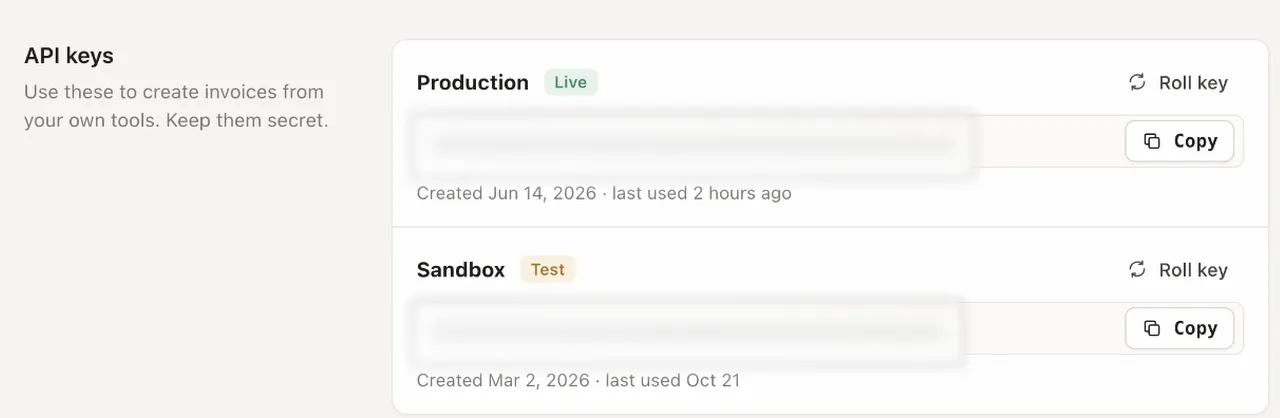
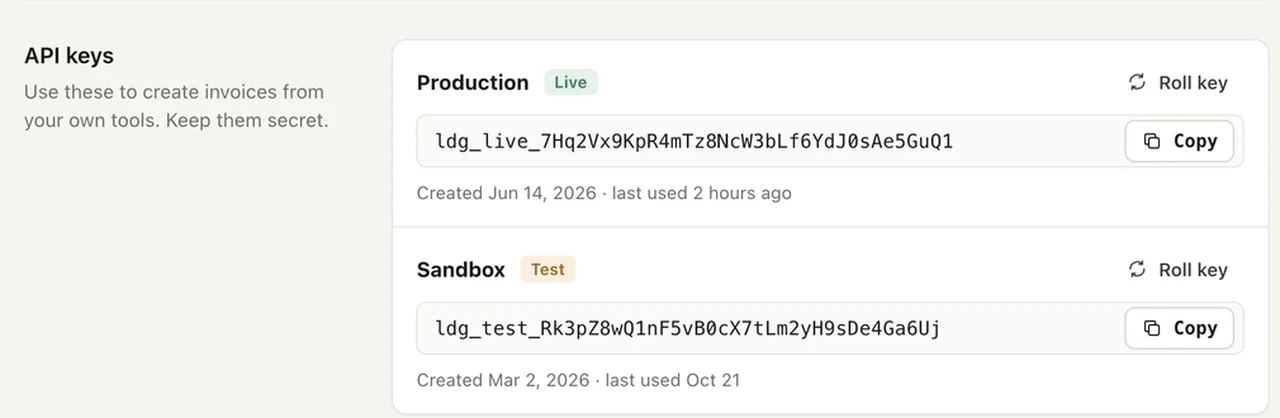
It covers what shouldn't be seenStarter+
Emails, keys and other private things on screen get spotted while you record, and Glass covers them for you.
At Stop
Press Stop and the edit is waiting.
Cuts the false starts
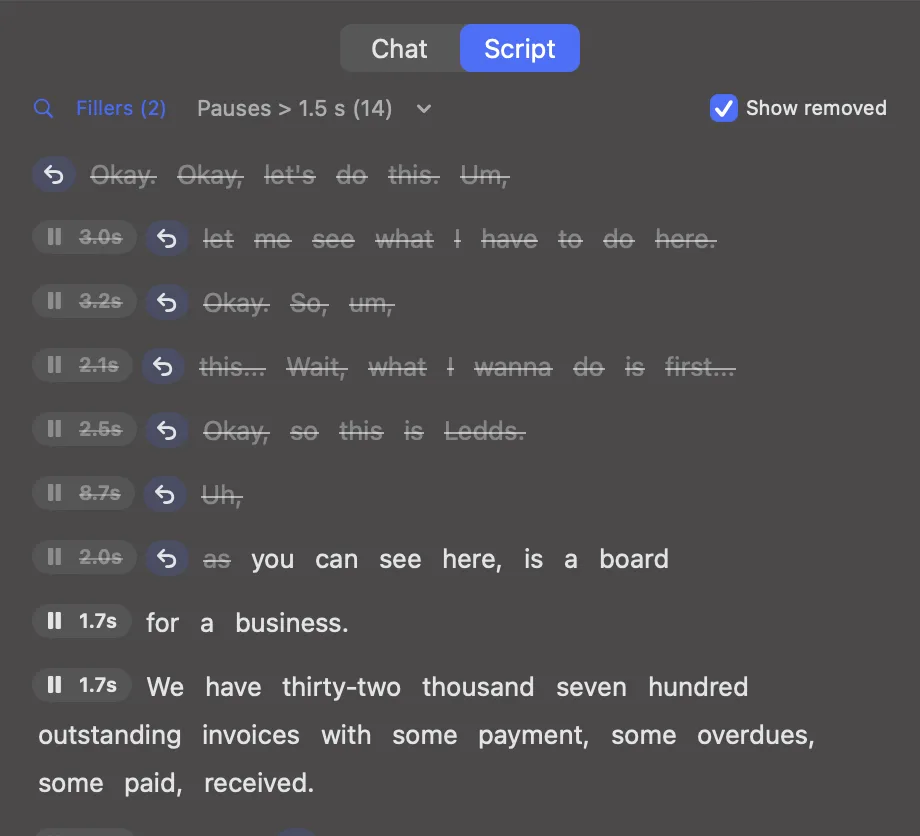
The okays, the ums and the sentence you started three times are gone. Glass keeps the take where you finally got going.
Speeds up the waiting
Spinners and slow pages play sped up, so nobody has to sit through them with you.
Zooms in on what you click
Glass pushes in on the button you press and lights up the click, then pulls back out when you move on.
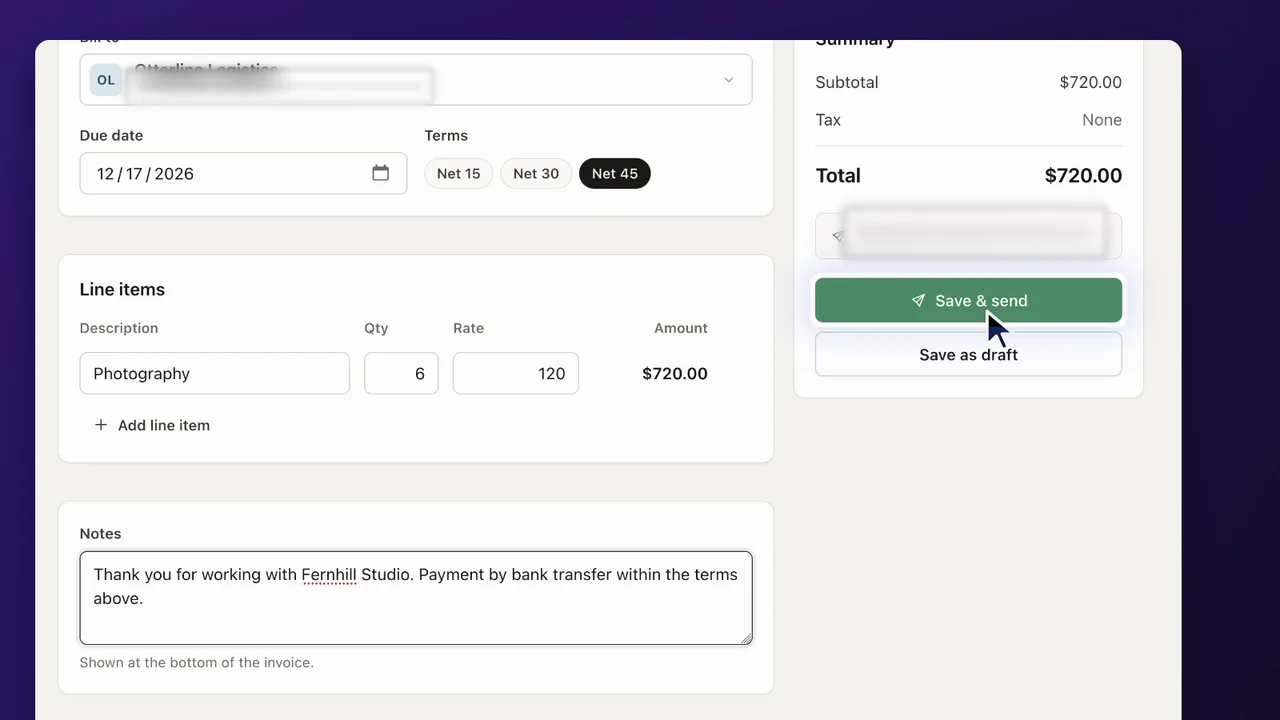
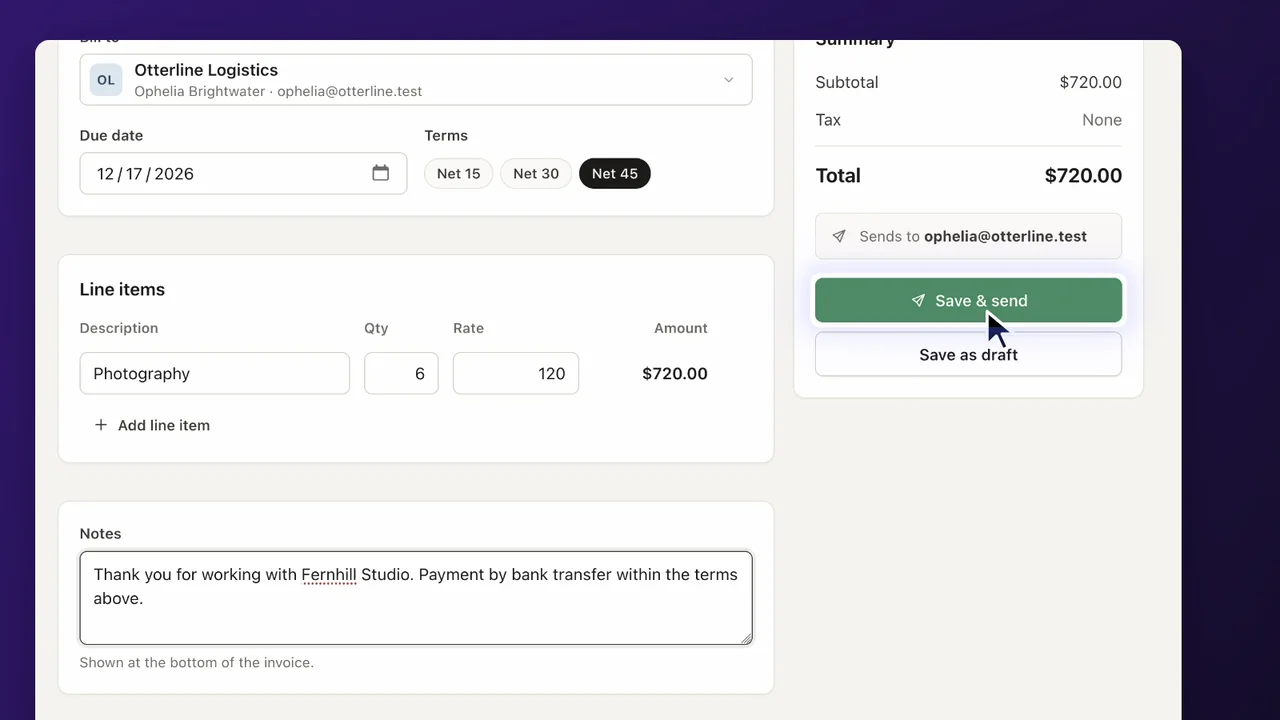
Covers private thingsStarter+
What it spotted goes under a cover that follows it around. It looks like a soft blur, but it's made only from the colours around it, so nothing under it can be read back.
Captions from what you said
Captions come straight from your words. You can light up the word being said, or keep each word lit once it's been said, karaoke style.
A title when you move on
When the take moves to something new, a short title says what it is, like Export Invoices.
Professional voice cleaningStarter+
Background noise comes out and your voice evens out, so it sounds like you used a better mic. The recording keeps your original mic too.
Fix it with chat
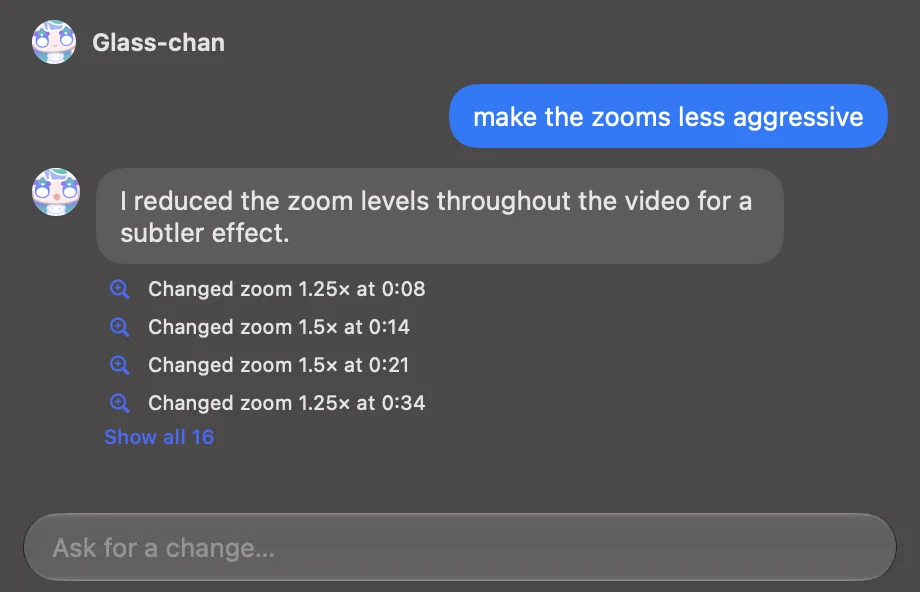
It won't be perfect, so just tell it what to change.
Ask for a change
Type what you want in plain words. Each answer lands as one change you can undo, with a list of what it touched.
Edit the words, edit the video
The Script is everything you said. Cut a few words and they're cut from the video, or fix a caption's spelling without touching the sound.
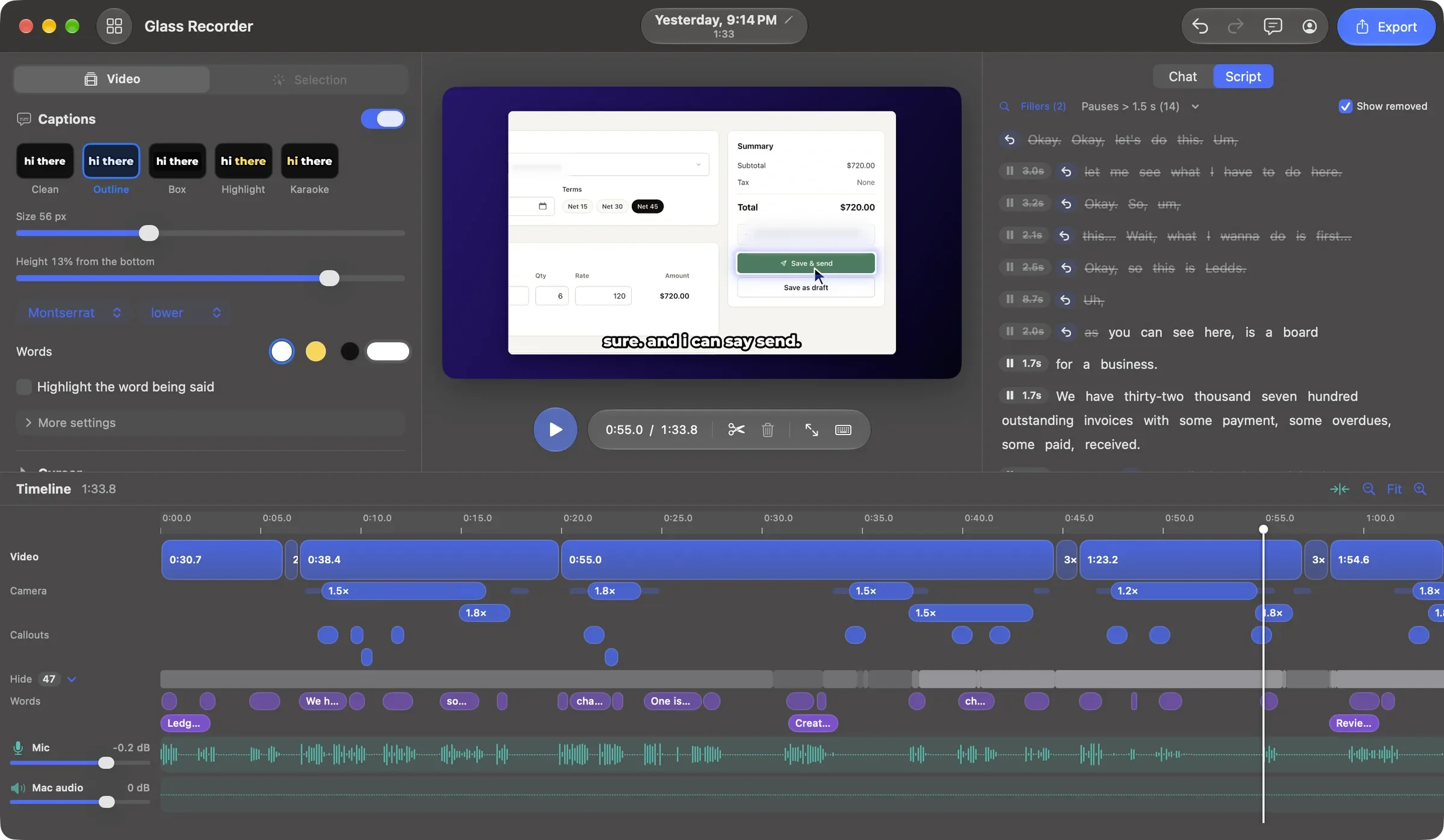
A timeline for everything else
Every zoom, callout, cover and title sits on a lane under the video. Drag it, trim it, or split the video right where you want.
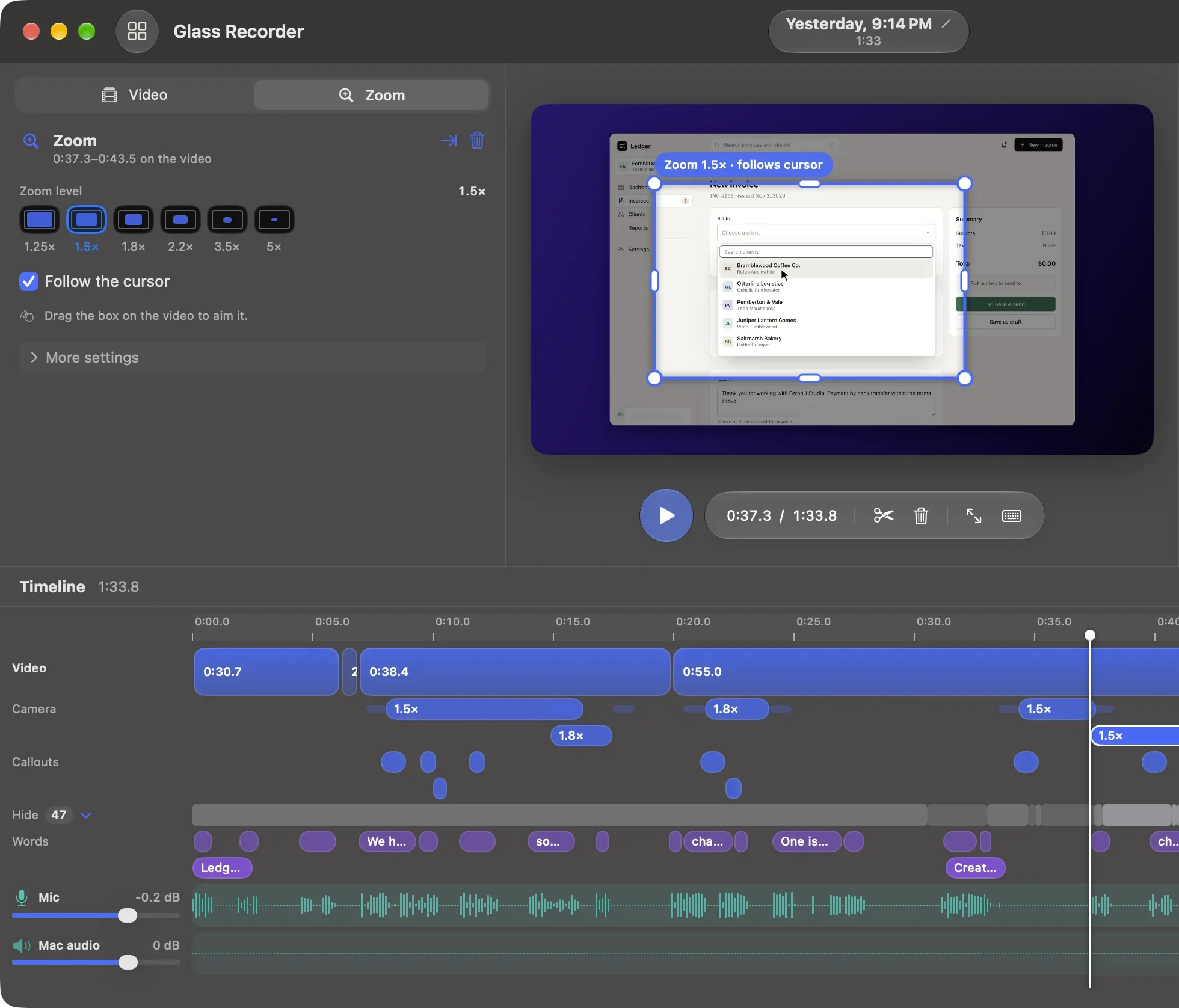
Add your own
Put in a zoom, a callout, a cover, some text or a voiceover line. Type the line and Glass says it in a generated voice.
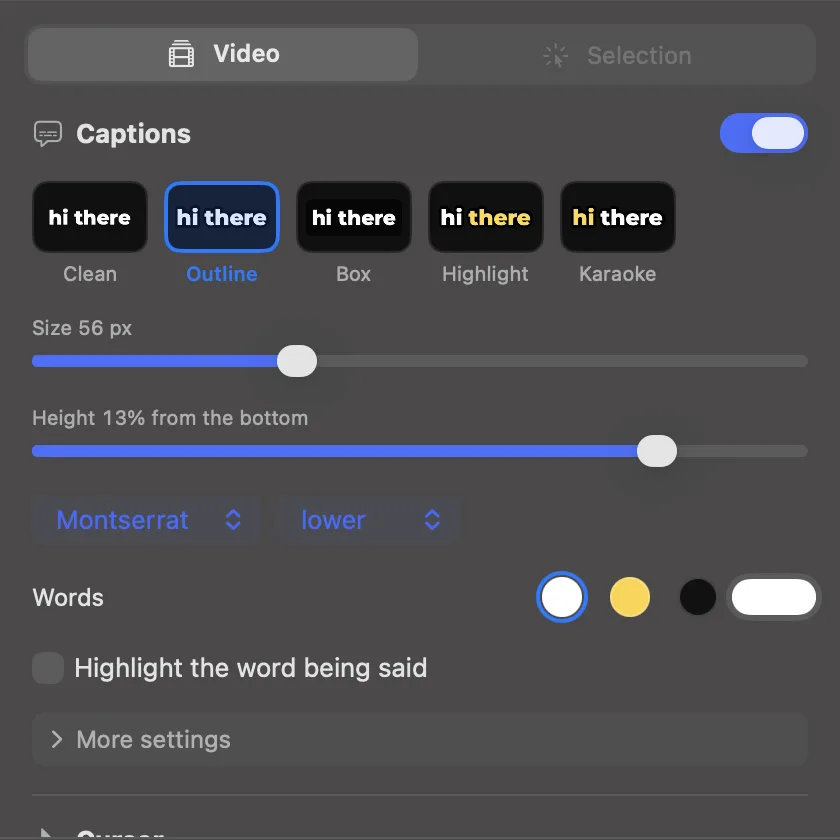
Make it look like yours
Pick a caption look, size the cursor, choose how clicks look and sound, and add music that drops under your voice.
Export
Then post it.

An MP4, ready to post
Export saves an MP4 with everything in it, in 1080p on paid plans.
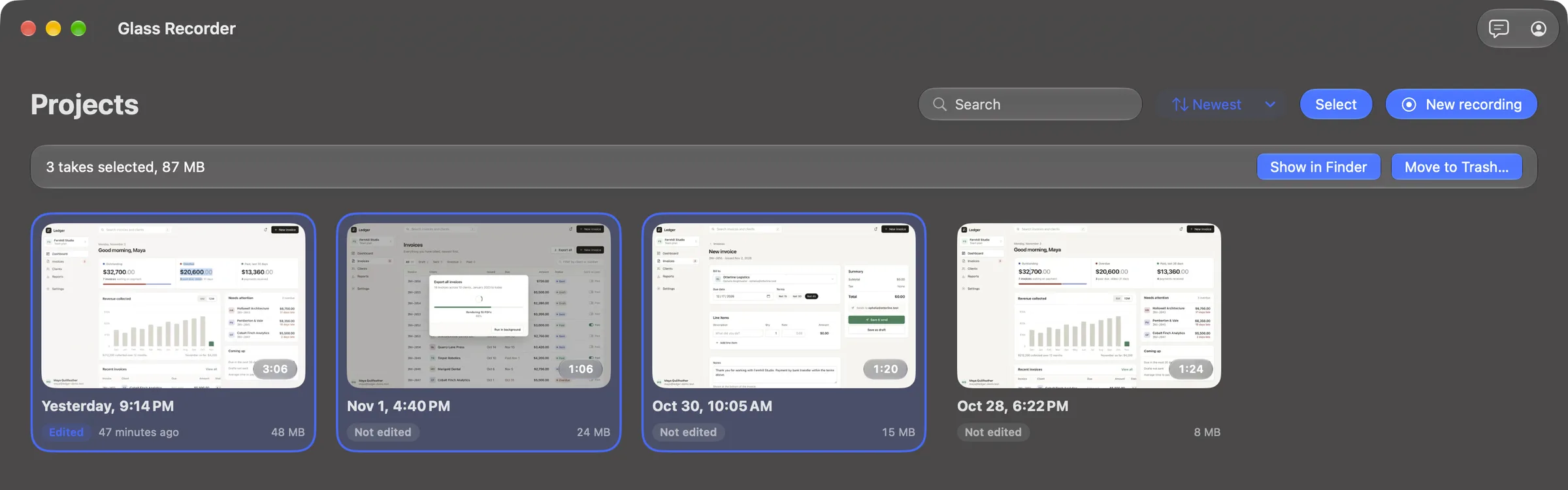
Every take in one place
Your takes show up as cards. Select a few and move them to the Trash or show them in Finder together.

Free to try.
Recording, editing by hand and exporting come with every plan. The plans differ in how much AI editing they include, and the features marked Starter+.
Sends this page to your Mac with AirDrop, Messages or email.